>

FAQ

Quick answers to help you get the most out of BillKit

>

What is BillKit?

BillKit is AI-supported expense tracking software for macOS that automatically extracts data from your invoice files. Instead of manually typing vendor names, amounts, and dates, you simply upload PDFs or photos and let AI do the heavy lifting.

It's designed for freelancers, sole traders, and small business owners who need efficient expense management without the complexity of enterprise accounting software.

Is BillKit really free?

Yes! BillKit's basic tier is genuinely free forever - no credit card required, no surprise charges, no trial period that expires. You get 1 business, 10 vendors, 5 categories, and 25 expenses per month. Perfect for freelancers and side projects.

When you need more capacity, BillKit Pro offers unlimited everything with flexible monthly billing at £2.99 per month. You can cancel at any time.

What do I need to get started?

You'll need a Mac running macOS 14.6+ (Sonoma) or later, about 500MB of free disk space, and an API key from either Claude (Anthropic) or OpenAI.

Both providers offer free credits when you sign up, so you can test BillKit's AI invoice processing without any upfront costs. Setup takes about 5 minutes.

Does BillKit work on Windows, Linux, or iPad?

No, BillKit is currently for macOS only. It's built as a native Mac application using Swift to deliver the fast, beautiful experience Mac users expect.

Right now, we have no plans for other operating systems except perhaps for iOS, though this may change in the future based on user demand.
>

AI & Invoice Processing

How does AI-supported expense tracking work?

When you upload an invoice file to BillKit, it sends the document to your chosen AI provider (Claude or OpenAI) for processing. The AI reads the invoice like a human would, extracting vendor information, amounts, dates, tax details, and line items.

This data is returned to BillKit where it's automatically organised into an expense record. The entire process takes 1-5 seconds per invoice depending on the amount of information the invoice contains to parse through.

How accurate is the AI data extraction?

BillKit's AI is highly accurate for standard invoices - typically 90%+ accuracy on clear, well-formatted documents. Every extraction includes a confidence score (0-100%) showing how certain the AI is about the data.

Invoices with confidence scores below your preferred setting (default of 60%) are automatically flagged for manual review, so you always have a chance to verify uncertain extractions before approving them.

Which AI provider should I choose: Claude or OpenAI?

Both work extremely well for expense tracking on macOS. Claude (Anthropic) tends to be slightly more accurate with complex invoice layouts and multi-currency documents. OpenAI is typically a bit faster.

The cost is nearly identical at approximately a few pennies per invoice. Try whichever one interests you - you can switch providers anytime in BillKit's settings without losing any data.

How much does AI processing cost?

AI processing is pay-as-you-go through your provider (Claude or OpenAI). Each invoice typically costs a few pennies/cents (£0.01-£0.02) to process, depending on file size and complexity.

For 50 invoices per month, expect £0.50-£2.00. Both providers offer free credits when you sign up, giving you plenty of runway to test BillKit before paying anything.

What file types can BillKit process?

BillKit supports PDF, PNG, JPEG, and HEIC (iPhone photos) files up to 32MB each. PDFs work best for professional invoices, while photos are perfect for quick receipt captures.

HEIC files from iPhones are automatically converted to JPEG before processing. Handwritten invoices aren't reliably processed - manual entry works better for those.

Can BillKit process multiple invoices at once?

Yes! Upload multiple files to BillKit's queue and you can process them all at once (in batches of 3 at a time). Alternatively you can process them one at a time manually.

This is perfect for month-end bookkeeping sessions when you have a stack of invoices waiting. Just drag, drop, and let AI work through the batch.

What if the AI gets something wrong?

AI can and does, at times get things wrong. You can manually edit processed records as required. Over time, you'll learn which vendors consistently extract perfectly and which ones need manual review.

BillKit's confidence score system will help you prioritise which expenses to check first.

Can BillKit process multi languages?

Yes. While BillKit's interface is English-only, the AI can extract data from invoices in multiple languages including Spanish, French, German, Italian, Portuguese, and others.

Accuracy is typically highest for English invoices, so review extractions carefully for other languages, especially when first processing a new vendor.

>

Features & Capabilities

Can I manage multiple businesses?

BillKit Pro supports unlimited businesses, perfect for portfolio entrepreneurs, consultants managing client projects separately, or anyone juggling multiple ventures.

Each business entity has its own vendors, categories, expenses, and invoice files, completely separated for clean accounting. Export data for a single business or all businesses at any time.

Does BillKit support multiple currencies?

Yes! BillKit is able to handle any global currency with each expense stored in its original currency as extracted from the invoice, Any view showing financial information comes with a filter so you can filter by currency.

If a currency cannot be extracted during processing, the business default currency is used.

Can I categorise expenses for tax purposes?

Absolutely. Create custom categories that match your tax return requirements - Office Supplies, Travel, Marketing, Professional Services, etc.

If the AI cannot reliably determine which of your categories the invoice belongs to, it will suggest a new category. At tax time, export expenses filtered by category to see exactly how much you spent in each deductible area.

Does BillKit integrate with Xero or QuickBooks?

Not directly, but BillKit exports all your data to CSV and JSON formats that accounting software can import. Export your expenses, categories, and vendors with all details and import the files into any accounting platform that accepts CSV formats.

Due to the number of accounting platforms globally, you may need to map the columns to match your accounting software's import requirements manually.

Can I track mileage or time-based expenses?

BillKit is specifically designed for invoice-based expenses (purchases from vendors). It doesn't currently track mileage logs or hourly time entries.

If you need those features alongside invoice tracking, you may want to use BillKit for invoice management and a dedicated mileage/time app for those other expense types.

What kind of reports can I generate?

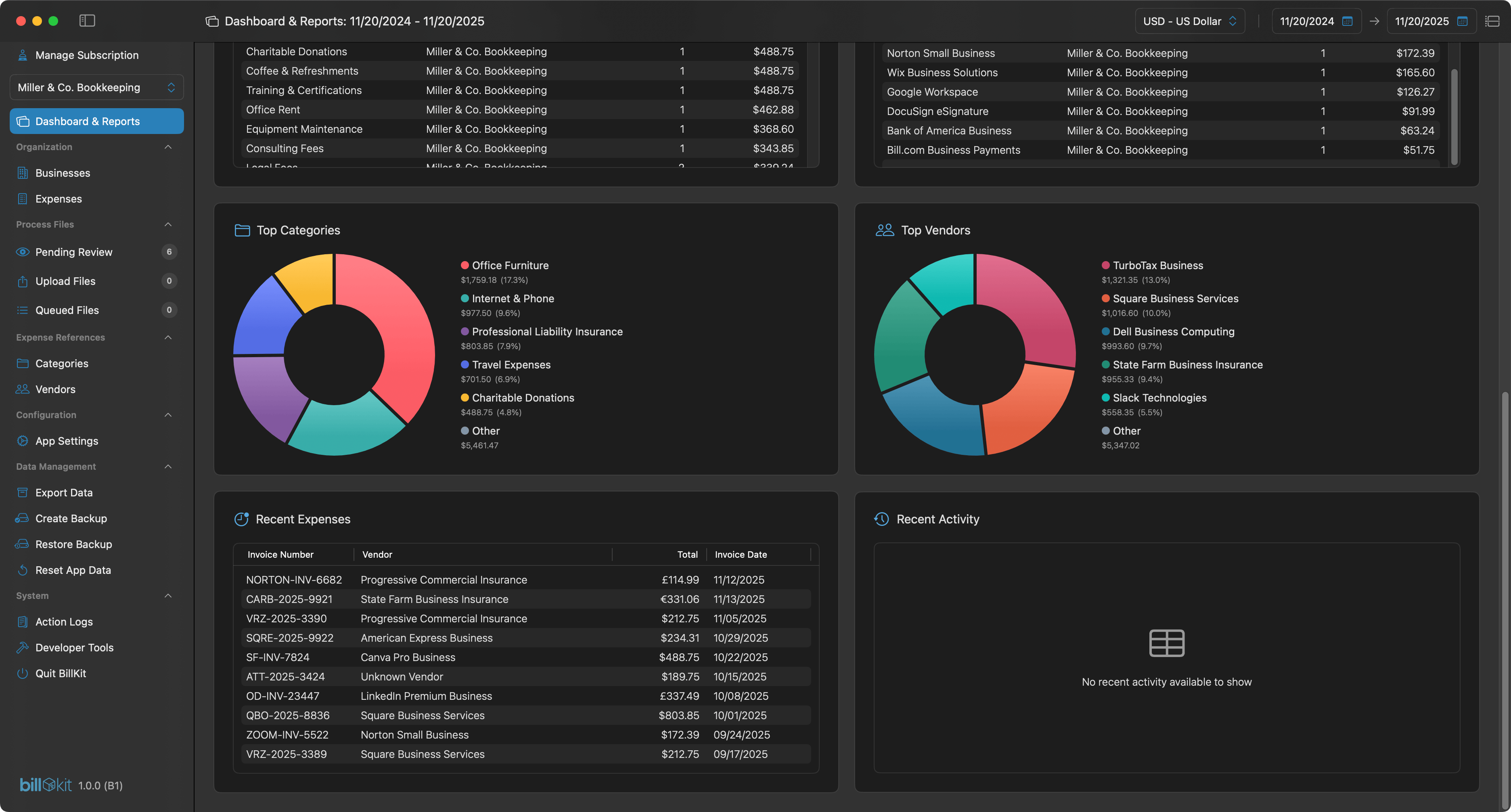
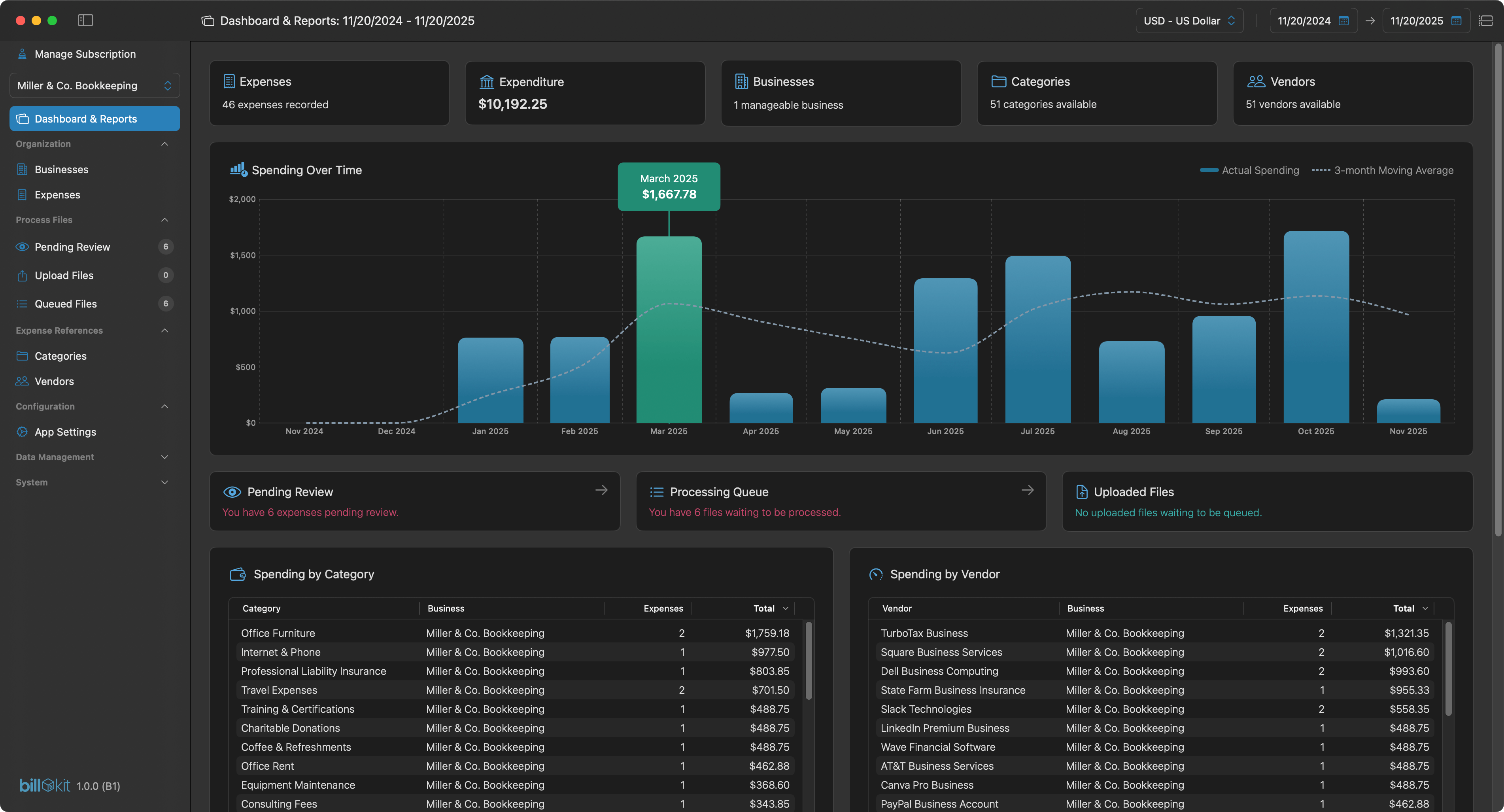
BillKit's dashboard shows spending trends over time, top categories by amount, top vendors by spend, and recent activity. Filter by date range (last 7 days, fiscal year, custom periods) and currency to analyse exactly what you need.

For deeper analysis, you can export all your data to CSV or JSON and create custom reports in Excel or Google Sheets.

>

Security & Privacy

Is my financial data secure?

Yes. BillKit stores all data locally on your Mac which means no cloud servers, no online accounts, and no remote access.

Your expenses, invoice files, and business information never leave your computer except when sending invoices to your chosen AI provider for processing. API keys are stored in macOS Keychain, encrypted by your system password.

Does BillKit store data in the cloud?

No. BillKit is a fully local macOS application. Everything stays on your Mac: the database, invoice files, categories, vendors, and settings.

This gives you complete control and eliminates concerns about data breaches, third-party access, or subscription-dependent data access. Your data is yours, period.

Can I use BillKit offline?

Mostly, yes. You can view all expenses, create manual entries without invoice files, run reports, and export data completely offline. A network connection is required to verify any subscription when the app starts and when AI-powered invoice processing is used.

This makes BillKit perfect for working from anywhere. From coffee shops or flights to remote locations with bad networks.

Who can access my BillKit data?

Only you. BillKit has no user accounts, no cloud sync, and no multi-user features. The data on your Mac is accessible only to anyone with access to your Mac itself. Not even BillKit's developers can see or access your data.

None of your data ever leaves your mac via the app to third parties except files containing invoice information when sent to your chosen AI provider.

What happens to my data if I stop using BillKit?

Your data remains on your Mac permanently until you choose to delete it. BillKit never holds your data hostage behind subscriptions or cloud services.

Export everything to CSV/JSON anytime, cancel your Pro subscription if applicable, and keep or delete your local data as you see fit. Complete ownership, always.

Do AI Providers store my invoice data?

When you process an invoice, it's sent to your chosen AI provider for extraction. Both providers have data retention policies and typically don't store data used via API for training purposes.

Check your provider's privacy policy for specifics. Your financial data never touches BillKit's servers - only your chosen AI provider sees the invoices during processing.

>

Pricing & Subscriptions

What are the differences between basic and Pro?

Basic tier includes 1 business, 10 vendors, 5 categories, and 25 expenses per month - perfect for freelancers and small-scale tracking. BillKit Pro removes all limits.

Both tiers include full AI processing and all core features. Pro costs £2.99 per month.

What happens if I exceed basic tier limits?

You can view all existing data but can't create new items beyond the limit. For example, if you have 15 vendors on basic after downgrading, you can still use all 15, you just can't add more.

For the monthly expense limit, you'll need to wait until next month or upgrade to Pro.

Can I cancel my Pro subscription anytime?

Yes, cancel anytime with no penalties. Your Pro subscription continues until the end of your current billing period, then reverts to basic tier limits.

All your data remains intact, you just can't create new items beyond basic tier limits until you upgrade again.

Do I get a refund if I cancel mid-month?

No, BillKit doesn't offer refunds for partial months. When you cancel, you retain Pro access until your billing period ends, then automatically revert to basic tier.

This is standard practice for subscription software. You're paying for access during that period, not pro-rated by usage.

>
BillKit app dashboard

Reclaim Your Weekends.
Automate The Busywork

AI-powered expense tracking for Mac. Upload PDFs and photos, process, done. Start tracking smarter today!

AI Powered
Privacy-first
Reporting
Exporting
MacOS 14.6+
BillKit Dashboard main screen
>

Data Backup & Restore

What's the difference between backup and export?

Backups create a complete snapshot of all BillKit data in a single ZIP file including database, invoice files, and settings. This allows a one-click restoration of your entire app.

Exports let you selectively extract data for analysis, but don't include settings. Use backups for data protection; use exports for software integration.

How often should I back up BillKit?

We recommend creating backups after major data entry sessions (like processing a batch of invoices), weekly if you use BillKit daily, or monthly for occasional users.

Always create a backup before updating BillKit to a new version or using the "Reset App Data" feature. Keep at least 2-3 recent backups in different locations in case one becomes corrupted.

Where should I store backups?

Store backups in multiple locations for safety. Good options include external drives (USB or SSD disconnected after backup), cloud storage services like Dropbox or Google Drive, network storage like a NAS, or multiple locations combined.

Avoid storing backups only on the same disk as BillKit or only on your Mac, as these won't help if the disk fails or your Mac is stolen or damaged.

Can I restore a backup to a different Mac?

Yes, BillKit backups are fully portable between Macs. Simply create a backup on your original Mac, copy the backup ZIP to your new Mac using a USB drive or cloud storage, install BillKit on the new Mac, and use the Restore Backup feature to select your backup file.

All your data transfers completely. Note that you'll need to re-enter your API key after restoring for security reasons.

What happens if restore fails halfway through?

BillKit includes automatic rollback protection. Before any restore begins, your current data is backed-up automatically.

If any step fails during restore, BillKit automatically rolls back to your previous data and displays an error message explaining what went wrong.

You never end up with corrupted or partial data - the restore either fully succeeds or fully rolls back to your previous state.

Why aren't API keys included in backups?

API keys are excluded from backups for security. Backups are often stored in cloud storage, transferred via email or USB drives, or kept in locations accessible by others.

If someone obtained your backup file containing your API Key, they could use it and incur costs on your account.

Re-entering your API key after a restore takes only 10 seconds and is required just once.

Can I open a backup ZIP and extract just invoice files?

Yes, backups are standard ZIP files that you can open with any archive tool. After extracting, navigate to the files/businesses/[uuid]/invoices/ folder to find your invoice files.

The backup also contains database files, settings, and a manifest file with metadata. You can copy invoice files to wherever you need them, but avoid modifying other files.

How do I know if a backup is good?

After creating a backup, check that the file size is reasonable, the filename shows the correct date and time, and no error message appeared during creation.

For thorough verification, extract the ZIP and confirm that folders exist for database, files, settings, and manifest.json. Check that manifest.json shows correct file counts.

>

Technical Questions

What are the system requirements?

BillKit requires macOS 14.6+ (Sonoma) or later, at least 500MB of free disk space (more if storing many invoice files), and an internet connection for AI processing.

It works on both Apple Silicon (M1/M2/M3) and Intel Macs. No other special hardware or software is needed.

How much disk space does BillKit use?

The core database starts small and grows with your data. Invoice files add to this based on your file sizes, potentially several GB if you process many large PDFs or high-resolution photos.

BillKit stores everything efficiently, and you can delete old invoice files anytime to reclaim space.

Can I back up my BillKit data?

Yes, multiple ways. Enable macOS Time Machine for automatic backups of everything (recommended). For manual backups, compress BillKit's container folder and save the ZIP to external storage.

You can also export all data for platform-independent archiving. All methods are documented in BillKit's user guides.

Can I sync BillKit between multiple Macs?

No, BillKit doesn't support cloud sync. Each Mac has its own separate database. To move data between Macs, export from Mac A, transfer the files, and import or manually re-enter on Mac B.

This limitation is a deliberate privacy choice. No cloud means no security concerns about financial data in third-party servers.

What happens if I delete BillKit?

If you delete just the application, your data and files remain intact and will reload when you reinstall. If you delete both the application and the container folder, all data is permanently lost unless you have backups.

Always export or back up before major changes. BillKit provides a "Reset" option if you want to wipe everything and start fresh. Remember, once data is deleted, it cannot be recovered.

Will BillKit slow down with thousands of expenses?

BillKit is designed to handle large datasets efficiently. The app uses Core Data with optimised queries and pagination, so performance remains smooth even with tens of thousands of expenses.

If you do experience performance issues with very large datasets, you can archive old expenses by exporting them to CSV and deleting expenses older than your tax retention period.

>

Troubleshooting

Why does my invoice extraction look wrong?

AI accuracy depends heavily on invoice quality. Blurry scans, unusual layouts, faded text, or non-standard formats confuse AI.

For best results, use 300+ DPI scans, upload PDFs instead of photos when possible, and ensure invoices are oriented correctly.

BillKit flags low-confidence extractions below your preferred setting (default at 60%) for manual review, so you'll always catch errors before approving.

What if BillKit doesn't recognise my vendor?

AI learns your vendors over time and passes details of known vendors during extraction.

If it cannot reliably determine the vendor, it will attempt to extract all vendor related information, so you can create a new vendor during review.

When reviewing an expense, you'll have the option to auto-apply extracted vendor details to the form fields making vendor creation a 2 button-click process.

Can I edit expenses after approving them?

Yes! Right-click any expense and choose "Edit Expense" to modify any aspect of the expense. The only thing you can't change is the attached invoice file - that's permanent once uploaded.

All actions throughout BillKit are logged in the audit /action log for historic viewing, possible compliance and troubleshooting. Audit logs can be cleared or deleted at any time.

Why is AI processing so slow?

Processing typically takes 1-5 seconds per invoice. If yours takes longer, check file sizes, page counts, and internet speed. Also try switching AI providers - OpenAI is sometimes faster than Claude.

During peak hours, AI services may experience high traffic causing delays. Processing files sequentially instead of parallel can also help with stability.

>

Updates & Support

Will I get future updates?

Yes, all users receive free updates. Both basic and Pro tiers get new features and improvements.

Some features may be Pro-only or have limits on the basic tier, but the core AI expense tracking is available to everyone.

Is any documentation available?

Yes, BillKit includes comprehensive user guides covering everything from getting started to advanced features.

Alternatively, you can access the documentation page directly from the app's Help menu.

How do I get support?

Email is the fastest way to get help, with typical response times within 48 - 72 hours.

You can reach us through the contact page, which provides direct email links and a contact form for your convenience.

Can I request features?

Absolutely. Feature requests are welcomed and considered for future releases based on user needs.

You can submit requests by contacting us. Your input helps shape the future development of BillKit.

>
>